Friday, 14 March 2014

MVC Support for SharePoint Apps

The new SharePoint Development Tools are supporting SharePoint Apps with an MVC Web Application as backend. That’s amazing. Finally you as a SharePoint Developer can get rid of the ASP.NET WebForms Crap and you get full support from Visual Studio.

Visual Studio 2013 - SharePoint  MVC App

The new MVC Template for SharePoint Apps of course contains the TokenHelper class that many SharePoint developer already may know from the legacy SharePoint App Templates using ASP.NET WebForms. On top of that, the new MVC template contains the SharePointContextFilter. This filter can be used either on MVC Controller classes or on controller actions. By applying this attribute to a controller or an action you can ensure that only calls authorized with a valid SharePoint Security Token (either AppToken, UserToken or the combination of both) are passed through the pipeline and can access the resource sitting behind the controller-action.

During the implementation phase we went a step further and created a new BaseController class and called it SharePointBaseController.

Visual Studio 2013 - SharePoint  MVC SharePointContextFilter


As you can see the new BaseController has the SharePointContextFilter Attribute on the class-definition. By doing so, all controllers that inherit from SharePointBaseController can only be invoked from valid requests. This technique allows us to put both (protected views only accessible for people with valid tokens and public marketing sites which are accessible for everyone) into a single web-project. Yes you can achieve this also without the SharePointContextFilter, but with the Filter your code will become cleaner and more readable.

Thursday, 13 March 2014

User Profile Synchronization Errors In SharePoint 2013

During testing of SharePoint 2013 I experienced the Application Event Log errors below.  When the errors occurred I was unable to run a User Profile Synchronisation with Active Directory.
Event ID 6398, category Timer
The Execute method of job definition Microsoft.Office.Server.UserProfiles.UserProfileImportJob (ID 0afab701-a201-4df9-bfc7-590838da8809) threw an exception. More information is included below.
Generic Failure
Event ID 1004, category None
Detection of product ‘{90150000-104C-0000-1000-0000000FF1CE}’, feature ‘PeopleILM’, component ‘{1C12B6E6-898C-4D58-9774-AAAFBDFE273C}’ failed. The resource ‘C:\Program Files\Microsoft Office Servers\15.0\Service\Microsoft.ResourceManagement.Service.exe’ does not exist.
Event ID 1001, category None
Detection of product ‘{90150000-104C-0000-1000-0000000FF1CE}’, feature ‘PeopleILM’ failed during request for component ‘{1681AE41-ADA8-4B70-BC11-98A5A4EDD046}’
Resolution
The resolution is to grant read access to the Network Service account to the C:\Program Files\Microsoft Office Servers\15.0 folder

Fixing SharePoint 2013 Errors when running SP configuration products wizard


I was installing SP 2013 Preview on Windows 2008 R2 SP1. After i installed SP 2013 i was trying to run SharePoint Products Configuration Wizard to configure my farm before i start using it and i was getting this error message on step 2:


when i checked the logged file, this is the actual error:

Exception: System.Management.Automation.CmdletInvocationException: ErrorCode:SubStatus: Service running under Network Service account in workgroup environment is not supported. ---> Microsoft.ApplicationServer.Caching.DataCacheException: ErrorCode:SubStatus: Service running under Network Service account in workgroup environment is not supported.
at Microsoft.ApplicationServer.Caching.Configuration.Commands.RegisterAFCacheHostCommand.BeginProcessing()

I was trying to understand why i'm getting this error ? As i see, it is because there is one of the services is using Network service which is not supported. But Which component that i can change without uninstalling and reinstalling SharePoint 2013 ? As highlighted in red, the configuration wizard is trying to setup AppFabric Chaching while creating the configuration wizard! 


I started to change the AppFabric Chaching service service account which was using Network service and rerun the configuration wizard but still same error!

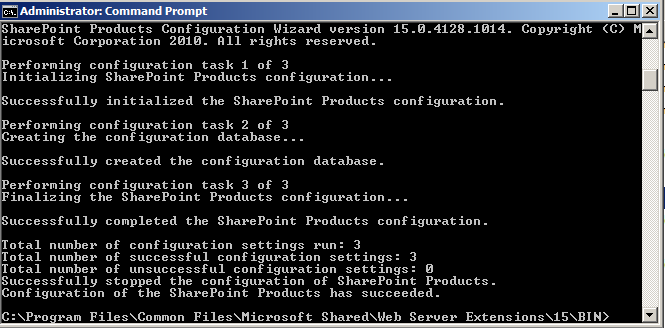
I googled the problem and i found that i can skip this step using the command line. The command runs the psconfig "Configuration wizard" in console mode with option to skip configuring the AppFabric Cache.

1) Open 15 hive folder:
C:\Program Files\Common Files\Microsoft Shared\Web Server Extensions\15\BIN
2) Open command line as administrator.
3) write down this command and hit enter!

psconfig -cmd Configdb create SkipRegisterAsDistributedCacheHost

4) The configuration database will be created.


5) Re-run the configuration wizard and you will be able to successfully configure your SharePoint 2013 Farm and you should be able to start using SharePoint 2013.


Tuesday, 11 March 2014

SharePoint 2013: Optimize your development Environment

Sunday, November 17, 2013

From Sohel's Blog


SharePoint 2013 demands more resources – especially more memory. When we need to setup a SharePoint 2013 environment we can optimize resource usage in the development server by provisioning/configuring required services as well as following some other guidelines listed in this post.

Search Service Applications

Search Service is EXTREMELY resource hungry. noderunner process (Search Service process for crawling/indexing) is widely known for it’s resources usage footprint. In case you don’t need search service in your development server, you can delete the service application or at least stop the service. If you need to use the search service from time to time, you can keep the search service application running but stop the search service. However, if you try to stop the search service from windows service, you will find the service will be started again by SharePoint. The correct way to stopping service is from Central admin as shown below:

image


If you need the search service components (crawling/indexing) on development server, you can reduce the performance level by running the following command in SharePoint PowerShell. More information available at http://technet.microsoft.com/en-us/library/ff608126.aspx.

Set-SPEnterpriseSearchService -PerformanceLevel Reduced

You can also control the noderunner memory consumption by changing ‘memoryLimitMegabytes’ in the config file “C:\Program Files\Microsoft Office Servers\15.0\Search\Runtime\1.0\noderunner.exe.config”. Please remember, changing the value to too low might cause the search service to fail.


Provision Required Service Applications only


If you install SharePoint using Installation wizard, different service applications are installed but you many not need all of these service applications. From Central admin you can delete unnecessary Service applications as well as stop services. As you can see below


Stop unnecessary Web Application


Even web application running in your development environment will create w3wp process (if a separate application pool is used) or at least use resources. So if you don’t nee a web application for time being, you can stop the web application as well as related application pool from IIS Manager.


Visual Studio IntelliTrace

If you use Visual Studio debugging in the server and your Visual Studio supports IntelliTrace and the feature is enabled, you can disable the option. That might improve your debugging experience. More information on how to enable/disable the feature can be found at:  http://msdn.microsoft.com/enus/library/dd264948(v=vs.100).aspx


Multiple Disk Drive


If you have configured multi-server farm, you can keep some servers in another disk drive. For example, I’ve a multi-server (4 servers – AD, SQL, WFE and App) farm and I’ve kept two servers in my external USB3 supported external drive. So rather than four server vying for the same disk access, two are vying for internal disk access and other two are vying for external disk.
Even if are running a single server farm, you can use an external SSD drive (or USB3) for better I/O throughput. Especially if you can move your database files in an external drive, you will experience much better performance.

Tracing Service


SharePoint uses a windows Service ‘SharePoint Tracing Service’ for logging. sometimes, like during deployment, you will find the log file is growing few hundreds megabytes in short time. So tracing service might take a bit role in performance. If you don’t need the log file for a period of time, you can disable the windows service. During development I usually disable the service and when I need to see the log file, I enable the service.

SharePoint 2013 Developer Guidelines


Developers are creative beings, particularly when it comes to solving problems. Their problem-solving skills are what make a developer great, coding a solution around problems to make desired functionality or processes achievable. The trouble with developing on SharePoint is that some approaches are more attractive and some are more problematic. Rather than risk having developers drift into those more problematic areas, I like to identify some general practices to help steer the solutions they develop.
I divide these practices into two lists: developer constraints and developer guidelines.

SharePoint Developer Constraints and Boundaries

I use this list to set expectations with architecture and developer teams on the standards their custom components have to meet. Although I will make exceptions to these rules, I insist on a compelling reason for the exception. I find that establishing these constraints and boundaries for customizations in a SharePoint environment drive long-term sustainability and supportability for the SharePoint service.
  • All customizations must package any deployment files and manifests in either a SharePoint solution package or an App for SharePoint package for deployment to the SharePoint farm. The deployment package must include all deployment and configuration instructions for SharePoint to automatically apply, including any Web.config settings or changes.
  • No customization may modify or overwrite the core SharePoint product and system files directly, including all ASPX, XML, JavaScript, CSS, and image files.
  • All customizations store any data they require by persisting it to a SharePoint database through the SharePoint API or by providing its own dedicated data store.
  • No customizations may query the SharePoint databases directly.
  • All customizations must only access the file system in a read-only fashion, except for copying a customization’s files and assemblies during its initial deployment.
  • No customization may implement its own caching solution and instead must use the SharePoint AppFabric or another persistence strategy available through the SharePoint API.
  • All customizations must handle all exceptions gracefully and provide a friendly error message while recording any error details to the log when an error or exception condition exists.

SharePoint Developer Guidelines

I use this list to encourage developers toward the most sustainable development practices in SharePoint where possible, but without the same rigor and enforcement as the previous list. This list more resembles nice-to-have practices that have more discretion depending on the solution.
  • Customizations ought to avoid exhausting any SharePoint resources from servers in the SharePoint farm, and instead they should consume a web service to do their “heavy lifting” on another server dedicated to handle the customization’s load.
  • Customizations ought to verify a requesting client has any necessary privileges for a particular resource or operation prior to attempting access, and where possible, suppress displaying a feature when a requestor lacks those privileges.
  • Customizations ought to impersonate the requesting clients’ credentials for any privileged request and avoid using the SPSecurity.CodeToRunElevated method to minimize any elevated privileges and circumvented security risks.
  • Customizations ought to access data in external systems through the Business Connectivity Services by providing definitions for any web services and databases the component needs to integrate with, rather than connecting to a system directly.
  • Customizations ought to write tracing and error information to the SharePoint log file and allow a SharePoint administrator to set the verboseness of tracing information it writes.
  • Customizations ought to make any user interface elements compatible with SharePoint themes and CSS classes.
  • Customizations ought to explicitly specify and assert the minimum .NET Code Access Security permissions an assembly requires to minimize the scope of any potential security vulnerabilities.
  • Customizations ought to create and consume dedicated Service Applications, where appropriate, to offload and isolate custom tasks and workflows associated with custom code.

Between these lists, I find that they set reasonable expectations and steer architecture and developer teams in a sustainable direction with how they design and code their solutions. I’m not rigid in enforcing these constraints and guidelines, as there are many valid reasons to make exceptions.
However, I do default to stay within this list unless there is indeed a valid reason for an exception, meaning a business requirement and not a convenience-related shortcut. As such, I use this list to guide me toward those solutions that fall outside items on the lists, guiding me toward conducting an architecture review and reconsidering the implementation design to see if the team has thought through the alternatives.

Monday, 10 March 2014

Create SharePoint 2013 Chart WebPart


Summary : Free SharePoint 2013 Chart WebPart, How to Create Free SharePoint 2013 Chart WebPart,Download SharePoint 2013 Chart WebPart, Create a Custom Pie Chart WebPart using Client Object Model in SharePoint 2013


In SharePoint 2013 the much used Chart WebPart has been removed and no good and easy alternative for the webpart has been provided. A Chart representation is always loved by the business especially by Managers.Being able to view the overall Status of Tasks gives a good idea of Whats pending and Whats moving in a Project.Task list in SharePoint 2013 by default has a column called “Status” which represents a task status by “Not Started,In Progress,Completed,Deferred and Waiting on someone else” options.


In this post we will see a Step-by-Step Tutorial to Create a Pie Chart WebPart that represent a Status column in a Task list.You can specify List Name (e.g. Tasks) View Name (e.g. All Tasks) and Column Name (e.g. Status) in webpart properties and a Google Pie chart will be created using these properties.Direct downloads are available at the end of the post.


Lets look at the Steps -


1. Create a Visual WebPart Project


2. Deploy as a Farm solution


2. Next Add a new Item of type Visual WebPart “SharePointPieChart”

3. Solution Explorer would look like below.


4. Paste the below code in SharePointPieChart.ascx.This is a JavaScript to create Google Pie Chart based on ListName,ViewName and ColumnName webpart properties.

< %@ Assembly Name="$SharePoint.Project.AssemblyFullName$" %>
< %@ Assembly Name="Microsoft.Web.CommandUI, Version=15.0.0.0, Culture=neutral, PublicKeyToken=71e9bce111e9429c" %>
< %@ Register Tagprefix="SharePoint" Namespace="Microsoft.SharePoint.WebControls" Assembly="Microsoft.SharePoint, Version=15.0.0.0, Culture=neutral, PublicKeyToken=71e9bce111e9429c" %>
< %@ Register Tagprefix="Utilities" Namespace="Microsoft.SharePoint.Utilities" Assembly="Microsoft.SharePoint, Version=15.0.0.0, Culture=neutral, PublicKeyToken=71e9bce111e9429c" %>
< %@ Register Tagprefix="asp" Namespace="System.Web.UI" Assembly="System.Web.Extensions, Version=3.5.0.0, Culture=neutral, PublicKeyToken=31bf3856ad364e35" %>
< %@ Import Namespace="Microsoft.SharePoint" %>
< %@ Register Tagprefix="WebPartPages" Namespace="Microsoft.SharePoint.WebPartPages" Assembly="Microsoft.SharePoint, Version=15.0.0.0, Culture=neutral, PublicKeyToken=71e9bce111e9429c" %>
< %@ Control Language="C#" AutoEventWireup="true" CodeBehind="SharePointPieChart.ascx.cs" Inherits="Sp2013ChartWebPart.SharePointPieChart.SharePointPieChart" %>

<script type="text/javascript" src="https://www.google.com/jsapi"></script>
<script src="https://ajax.googleapis.com/ajax/libs/jquery/1.4.2/jquery.min.js"></script>
<script type="text/javascript">
google.load('visualization', '1', { packages: ['corechart'] });
< /script>

<script type="text/ecmascript" language="ecmascript">
ExecuteOrDelayUntilScriptLoaded(CreateChart, "sp.js");
var ListName = '<%=listname%>';
var ViewName = '<%=ViewName%>';
var ColumnName = '<%=ColumnName%>';

function CreateChart() {
try {
if (ListName != null && ViewName != null && ColumnName != null) {

var context = new SP.ClientContext.get_current();
var list = context.get_web().get_lists().getByTitle(ListName);
var view = list.get_views().getByTitle(ViewName);
context.load(view);

context.executeQueryAsync(
function (sender, args) { getItemsFromList(ListName, "<View><Query>" + view.get_viewQuery() + "</Query></View>") },
function (sender, args) { alert("error: " + args.get_message()); }
);
}
}

catch (e) { alert("Please check the WebPart Properites and the values in the specified list. Error :" + e); }
}

function getItemsFromList(listTitle, queryText) {
try {
var context = new SP.ClientContext.get_current();
var list = context.get_web().get_lists().getByTitle(listTitle);

var query = new SP.CamlQuery();
query.set_viewXml(queryText);

var items = list.getItems(query);
context.load(items);
context.executeQueryAsync(
function () {

//Creating google datatable
var data = new google.visualization.DataTable();
data.addColumn('string', ColumnName);
data.addColumn('number', 'numberofitems');

var itemCount = items.get_count();
var itemsarry = new Array(parseInt(itemCount) - 1);
var ListEnumerator = items.getEnumerator();

//adding values to array
for (i = 0; i < itemCount; i++) {
itemsarry[i] = new Array(0);
itemsarry[i][0] = items.get_item(i).get_item(ColumnName);
}

//gettig count of unique values from array
var uniqueItemsCount = 0;
var uniqueItems = {};
$.each(itemsarry, function () {
var num = this[0];
uniqueItems[num] = uniqueItems[num] + 1 || 1;
uniqueItemsCount++;
});

data.addRows(uniqueItemsCount);
var j = 0;
$.each(uniqueItems, function (itemValue, noOfItems) {
if (itemValue != 'undefined');
{
data.setValue(j, 0, itemValue);
data.setValue(j, 1, noOfItems);
j++;
}
});

drawVisualization(data);
},

function (sender, args) { alert("error in inner request: " + args.get_message()); }
);
}

catch (e) { alert("Please check the WebPart Properites and the values in the specified list. Error :" + e); }
}

function drawVisualization(data) {
new google.visualization.PieChart(document.getElementById('visualization')).
draw(data, { title: "Status" });
}

</script>
< div id="visualization" style="width: 1000px; height: 600px;"></div>


5. Next we will Create an Editor Tool Part and add WebPart Properties to it.Add the below code to create webpart properties in SharePointPieChart.ascx.cs.

using System;
using System.ComponentModel;
using System.Web.UI;
using System.Web.UI.WebControls;
using System.Web.UI.WebControls.WebParts;
using Microsoft.SharePoint;
using Microsoft.SharePoint.WebControls;
using System.Collections;


namespace Sp2013ChartWebPart.SharePointPieChart
{

[ToolboxItemAttribute(false)]
public partial class SharePointPieChart : WebPart
{

public SharePointPieChart()
{
}

protected override void OnInit(EventArgs e)
{
base.OnInit(e);
InitializeControl();
}

protected void Page_Load(object sender, EventArgs e)
{

}
#region Custom ASP.NET web part property
public override object WebBrowsableObject
{
get
{
return this;
}
}


//Task list name string

private String _listname = null;
private String _ColumnName = null;
private String _ViewName = null;

[Personalizable(), WebBrowsable()]
public String listname
{
get { return _listname; }
set { _listname = value; }
}

[Personalizable(), WebBrowsable()]
public String ColumnName
{
get { return _ColumnName; }
set { _ColumnName = value; }
}

[Personalizable(), WebBrowsable()]
public String ViewName
{
get { return _ViewName; }
set { _ViewName = value; }
}

//Create an editor part to set the custom task list


public override EditorPartCollection CreateEditorParts()
{
ArrayList editorArray = new ArrayList();
CustomProperty edPart = new CustomProperty();
edPart.ID = this.ID + "_editorPart1";
editorArray.Add(edPart);
EditorPartCollection editorParts = new EditorPartCollection(editorArray);
return editorParts;
}


// Create a custom EditorPart to edit the WebPart control.

private class CustomProperty : EditorPart
{
TextBox _tblistname;
TextBox _ColumnName;
TextBox _ViewName;


public CustomProperty()
{
Title = "WebPart Settings";
}


public override bool ApplyChanges()
{
SharePointPieChart part = (SharePointPieChart)WebPartToEdit;


//Update the custom WebPart control with the task list


part.listname = tblistname.Text;
part.ColumnName = ColName.Text;
part.ViewName = VName.Text;
return true;
}


public override void SyncChanges()
{
SharePointPieChart part = (SharePointPieChart)WebPartToEdit;
String currentList = part.listname;
}


protected override void CreateChildControls()
{
Controls.Clear();

//Add a new textbox control to set the task list
_tblistname = new TextBox();

_ColumnName = new TextBox();
_ViewName = new TextBox();
Controls.Add(_tblistname);
Controls.Add(_ViewName);
Controls.Add(_ColumnName);
}
protected override void RenderContents(HtmlTextWriter writer)
{
writer.Write("<strong>List or Library Name :</strong>");
writer.WriteBreak();
_tblistname.RenderControl(writer);
writer.WriteBreak();
writer.Write("<strong>View Name :</strong>");
writer.WriteBreak();
_ViewName.RenderControl(writer);
writer.WriteBreak();
writer.Write("<strong>Column Name :</strong>");
writer.WriteBreak();
_ColumnName.RenderControl(writer);

writer.WriteBreak();
}


// Return the task list name from the textbox

private TextBox tblistname
{
get
{
EnsureChildControls();
return _tblistname;
}
}

private TextBox ColName
{
get
{
EnsureChildControls();
return _ColumnName;
}
}

private TextBox VName
{
get
{
EnsureChildControls();
return _ViewName;
}
}
}
#endregion

}
}


6. Save and Run the project.

7. Add the WebPart into Solutions Gallery and then add it on the page.


8. Set the webpart properties as below.


9. Final Result


Wednesday, 22 January 2014

How to Embed A PDF into A Webpage


Hear are the steps:


1.    A Text File .txt
2.    Content Editor Web part
3.    A SharePoint Page


The first step to showing the PDF within a webpage is to store the PDF on your SharePoint site where users will be able to access it.  Once you have uploaded your PDF copy the URL for the newly uploaded PDF file.
After you have uploaded the file, create a new text .txt document in Notepad.  Insert the below code into your text file, but replace the “Your URL HERE” with the URL of your PDF File.  Make sure to leave the “  “at each end since that is needed.

<embed src="YOUR PDF URL HERE.pdf" style="width: 100%!important; height: 1000px!important;style="z-index:-5;" scrolling="no" frameborder="no" allowtransparency="true">

Now that the file has been created, store the text file somewhere on your SharePoint site so we can link a content editor Web Part to it.
Place the content editor Web Part on your page and link it to the text file that you just uploaded, apply the changes, and save the page.  You should now your PDF within the browser!